FL STUDIO BASICS
How to use FL Studio - Making music
This section covers the FL Studio desktop and basic workflow. FL Studio allows you to load instruments and samples, play these live or manually enter the note data, record external sounds (from a microphone for example) and play the whole mix back through the mixer (adding effects). The completed project can be saved to a .flp or .zip and/or exported (rendered) to .wav, .mp3 or .ogg audio.
This section covers:
- The main windows.
- Adding instruments to a project.
- Composing & sequencing.
- Arranging & editing songs.
- Mixing & levels.
- Exporting audio & saving.
- Using the Manual and Website.
- Our favorite YouTube Channels.
Getting Started Videos
General workflow and production including audio recording...
The entry level Fruity Edition is very capable ...
Two projects from scratch to get you started ...
After the above, we also recommend you watch the  FL Studio | What's New YouTube play list. It's a great way to cover all the latest features.-
Main Windows
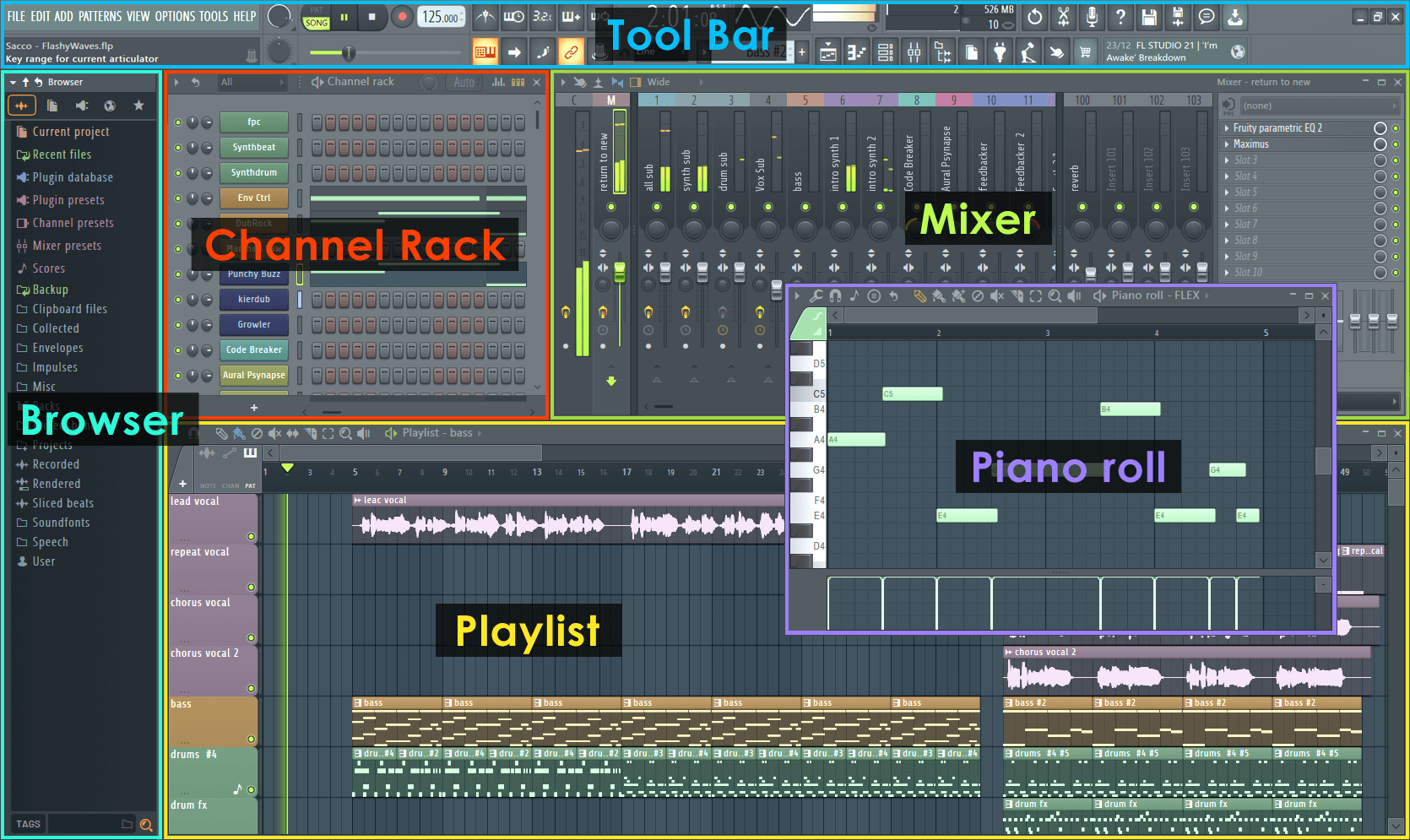
The FL Studio desktop is based on a number of windows, most of these are movable (with overlap), resizable, zoomable and switchable so if a window isn't visible open it using the Shortcut toolbar (or the function keys as noted in brackets). The main windows involved in FL Studio music creation are - Channel Rack (F6), Piano roll (F7). Mixer (F9) and Playlist (F5). The Browser (Alt+F8) is used to access audio files, plugins & presets (see the File setting options for adding folders elsewhere on your computer to the Browser). NOTE: If you ever need to reset the position of all windows to their default use (Ctrl+Shift+H) or see the View menu options.
Workflow
Once you have mastered the FL Studio interface, the next step is to learn the procedure for creating music - the FL Studio 'workflow'. The typical steps making a track are outlined below:
1. Instruments
It's important to know FL Studio does not impose a simple Instrument > Playlist Track > Mixer Track relationship. While the Channel Rack holds instruments (plugins) that create sound and internal generators that control automation, every pattern has access to all instruments in the rack. This means all patterns have access to all instruments in the Channel Rack. In other words, patterns also are not limited to a single instrument as they are in most other sequencers. This opens several workflow opportunities as shown below. Music data can come in the form of Step sequences and Piano roll scores. The height of the Channel Rack will change dynamically as you add and remove plugins. The Step Sequencer, ( Video Here) is a pattern-based grid sequencer ideal for creating drum loops when Channels are loaded with the native Sampler, that holds a single percussion sample per Channel.
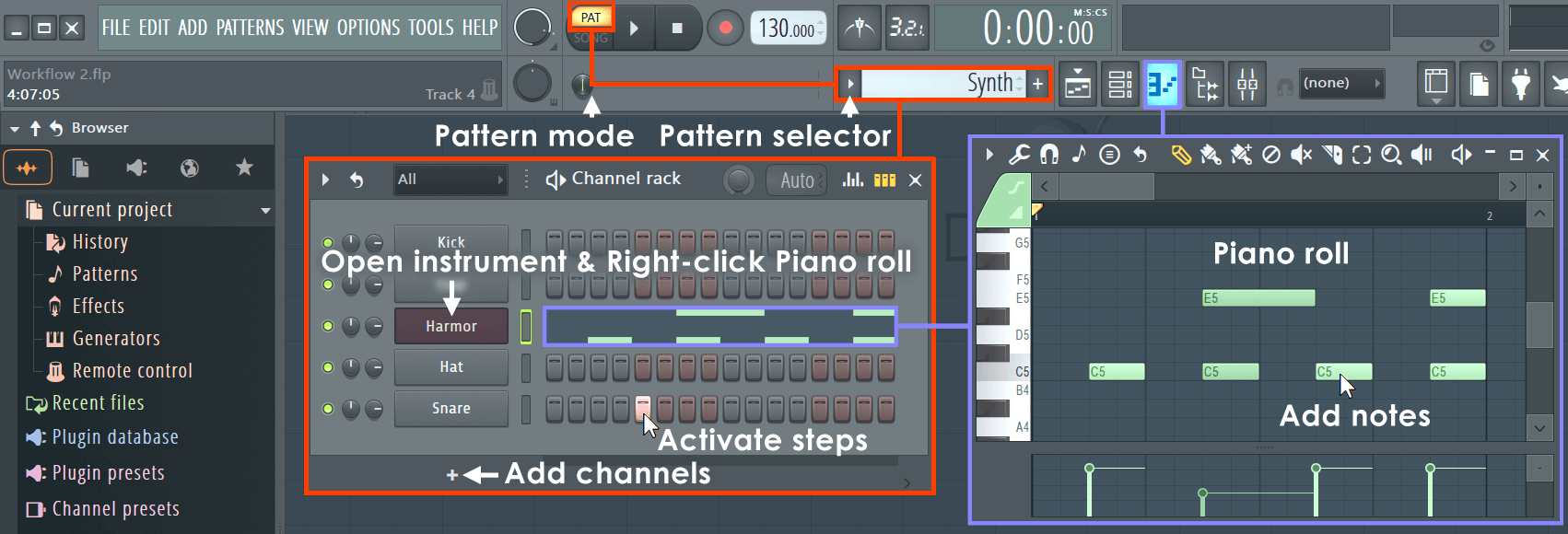
- Instruments - Instrument plugins make the sounds used in a song and are loaded in the Channel Rack. In the
screen-shot above, the instrument interfaces are minimized and can be accessed by Left-clicking on the Channel buttons. Instruments generally fall into two types, software synthesizers that create audio using an internal 'synthesis engine' or sample players that play back 'audio recordings' such as drum loops, percussion samples or instrument samples.
- There are several ways to load a new instrument, these will determine your main workflow choice. The first two below are recommended and will auto-name and auto-route the instrument to the Mixer track:
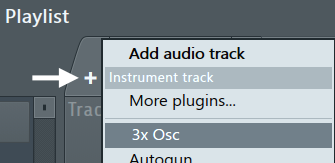
- Instrument & Audio Track workflow (linear) - Load plugins (or Audio) onto Playlist Track headers by clicking the + icon on the Clip Focus area and selecting an instrument from the list:
Alternatively, (Right-click) target Playlist Track header and select Track mode > Instrument track and load an instrument from the pop-up menu OR open the Plugin Picker (F8), Browser or external Operating System Browser (for Audio) to drag-and-drop on the desired Playlist Track header (the area at the start of the Playlist lane).
All these methods create a group between the Instrument Channel, Playlist Track and Mixer track including a new Pattern Clip named after the Instrument Channel. Changes to names of colors of any member of this group will ripple throughout. This most closely mirrors Instrument Channel > Playlist Track > Mixer Track workflow found in most other DAWs.
Advantages include; Simpler project layout and routing. Less routing and naming of Playlist and Mixer Tracks. Ripple renaming and coloring. Opening Instrument Channels by double-clicking on the Playlist Track header. Adding FX by dropping them on the Playlist Track header.
- Channel & Mixer linked workflow - Select Instruments or Audio as a above, but drop them on a Mixer Track. The Mixer track will be auto-named and plugin routed to that Mixer track. In this case, the Playlist is not assigned to any specific Instrument or Audio Channel.
- Channel Rack workflow - Drop Instruments or Audio on the Channel Rack and the instrument will be routed to the Master Mixer track. You can also use the + Button at the bottom of the Channel Rack. The instrument will be routed to the Master Mixer track. Similarly the Add menu will do the same. This method gives you the most flexibility to arrange your Channel Rack, Playlist and Mixer relationships as you need, post creation.
NOTE: In all cases above, to replace an existing instrument channel, (Right-click) on a Channel button and select 'Replace >' from the pop-up context menu.
- Instrument & Audio Track workflow (linear) - Load plugins (or Audio) onto Playlist Track headers by clicking the + icon on the Clip Focus area and selecting an instrument from the list:
- In the case of samples & loops you can also drag these from the Browser to the Playlist (see below). When you drag a sample to the Playlist an Audio Clip instrument is automatically added to the Channel window. Alternatively you can (Right-click) the sample in the Browser and 'send' it to one of the instruments in the pop-up list.
- Add your own folders to the Browser with the F10 > File settings dialog.
- To open an instrument interface Left-click on the Channel button.
- Think of the Channel window as a rack of synthesizer/sampler modules that can be routed to any one of the 99 Mixer Tracks using the Channel settings FX (Mixer Track Selector).
- There are several ways to load a new instrument, these will determine your main workflow choice. The first two below are recommended and will auto-name and auto-route the instrument to the Mixer track:

2. Composing, Sequencing & Automation
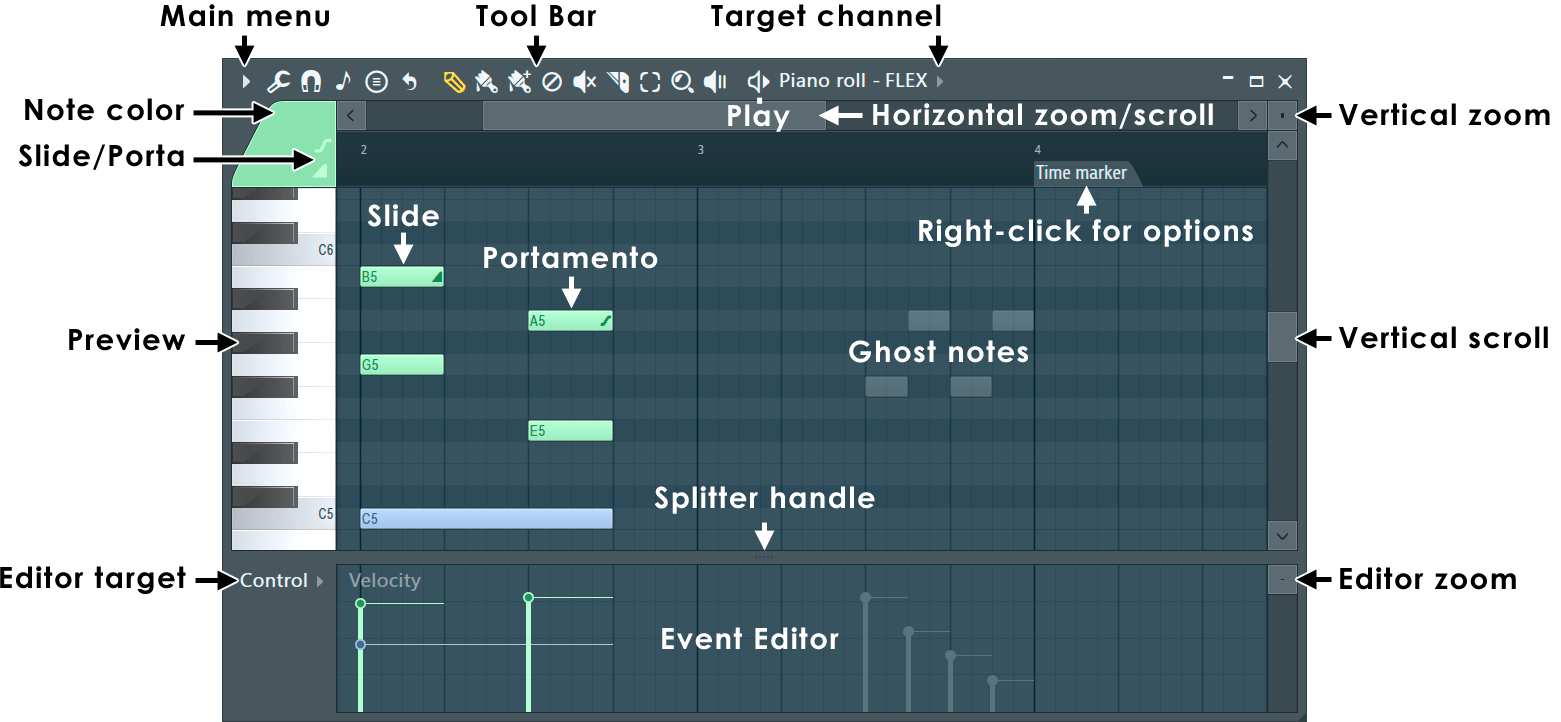
TIP: (Right-click) the Snap to scale (note icon) and select either the Major (Ionian) or Minor (Aeolian) scale. Then set the Root note to the first note used in your melody or bass line. Scales and Keys are the building blocks of popular music.
- Composing - Musical notes and chords can be played live via a controller keyboard or entered manually in the
Piano roll ((Right-click) the Channel buttons to open the Piano roll) OR use the default Step Sequencer to
trigger percussion samples. There is a Step Recording option on the Shortcut icons too.
The musical Scale and Key you use is important. Not so much which one you use, but you actually do use one. If you are new to music theory, it's a great idea to use the Snap to scale feature (see the note icon in the toolbar). When selected, placed and dragged notes will snap to the Scale and Key set (Right-click the note icon). When all the notes in the Piano roll are from a single Scale and Key, the chords and melodies you make will sound better. You can read more about why this is so here.
- When editing patterns, if you select Pattern Mode then you will alwats play the currently selected pattern.
- To the right of each instrument button in the Channel window is either a step-sequencer display (rows of squares) or a mini-preview of a Piano roll (green lines).
- Step Sequencers and Piano rolls are interchangeable for each Channel.
- New instruments start with an empty Step Sequencer pattern by default. Step Sequencers and Piano rolls hold the note data only for the instrument channel they are associated with.
- Step-sequencer 'steps' are activated by by Left-clicking the squares to turn them on, or (Right-click) to turn them off (great for percussion programming).
- To open an existing Piano roll, Left-click directly on the mini-preview window.
Changing patterns - Left-click hold and slide up/down on the Pattern Selector (shown above) to change the pattern number and work on a new pattern.
- 999 unique patterns can be created. The complete stack of channel instruments and their Step sequence/Piano roll data is a single pattern. In the example above, Pattern '1' consists of a Harmor Channel being played by a Piano roll and a Step Sequence Hat Channel. In the example below Pattern 2 consists only of step-sequence data playing the Kick & Hat channels.
- As you step through the patterns with the Pattern Selector, the appearance of the channel window will change to reflect the note data associated with each pattern.
- The length of each pattern can vary and is determined by the number of bars spanned by the longest data in any one of the channels.
- Piano rolls may be of any length. The 'LCD' window showing '--' in the top left corner of the Channel window changes the number of Steps in the pattern (4 to 64 are possible).
- Sequencing & Automation - Another extremely important area is creative use of the integrated tools. For example Automation, is the foundation of all interesting music. That is, changes in level, timbre, panning and stereo space.
3. Arranging & editing
The Playlist sequences all the elements of the project that play to make the final song. The Playlist window is a stack of multi-purpose 'Clip Tracks' that can host Patterns Clips, Audio Clips and Automation Clips. Unlike most other sequencers, the Playlist tracks are not bound to any one instrument, audio recording or even Clip type. You can put any Clip type anywhere and even overlay Clips. Think of Clips as a little like notes in the Piano roll. When the play-head reaches a Clip, FL Studio plays whatever the Clip instructs it to do.
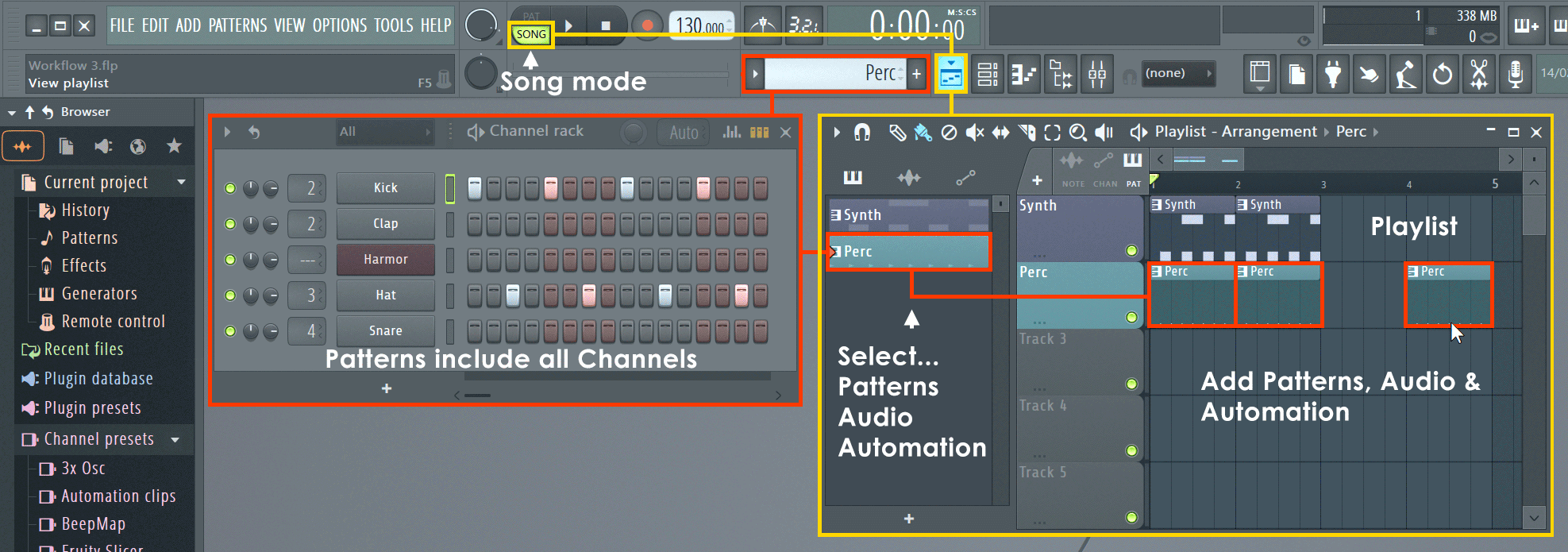
- Arranging - A handy tool to use when arranging is the Picker Panel (shown above). Use this to select, or drag and drop, Patterns, Audio and Automation Clips into the Playlist. It's also great for managing content, allowing you to group rename and color Clips.
- Arranging with 'Producer edition' - Use the Playlist to hold three types of data, use the Clip source selector (shown below) to select:
- Pattern Clips (notes) - Patterns generally hold note data for sequencing Plugin instruments, although they can also contain Automation Event data.
- Audio Clips (audio/loops/samples) - If an Audio Clip already exists, it can be selected from the 'Clip source selector', otherwise you can drag sample/loop/audio files from the Browser directly into the Playlist. Add your own folders to the Browser with the F10 > File settings dialog.
- Automation Clips (control movements) - Automation Clips move knobs and controls on the FL Studio interface and plugins. To create an Automation Clip (Right-click) on an interface control and select 'Create automation clip'.
- Arranging with 'Fruity Edition' - that only has access to the Pattern Clip type that holds note data from Stepsequences or Piano rolls &
Event Automation. The length of a Pattern Clip will be determined by the length of the data in it, you are not restricted.
- Audio - Since Audio Clips are not available in Fruity Edition, to insert track-length audio you can trigger a Sampler Channel from a Pattern using the Piano roll to control the duration of the sample. The note C5 will play the audio at the original pitch.
- An alternative Clip selection method is to (Right-click) a tab of the Playlist Clip Focus selector to show Clips of the desired category.
- Once a Clip is selected, select Draw (Pencil) or Paint (Brush) mode Left-click on a blank area of the Playlist. Dragging in Paint mode will repeat the Clip as you drag horizontally.
- Once placed, Pattern Clips can be clicked + dragged around (horizontally or vertically) by the name-bar that runs along the top of the clip. The way the clip moves will depend on the Playlist snap settings and zoom level.
- The Playlist Clip Tracks can be named, colored, moved up/down or muted. These functions are accessed by a (Right-click) on the Name area at the start of each track.
- You can place any Pattern Clip in any Clip Track, or any number of different clips in the same track. Clip tracks are just universal holding lanes for any and all data types.
- Playback - Make sure you are in Song Mode so that the patterns are played from the Playlist. Otherwise, you will play only the selected pattern. There are Play buttons on the top of the Channel window and Playlist, so you can also initiate a Pattern or Playlist play-back that way.
- FL Studio is not limited to pattern-based sequencing, you can also enter an unused Pattern Clip into the Playlist and play song-length data (patterns). Thus, FL Studio has the flexibility of being either a 'track-based' sequencer, a 'pattern-based' sequencer, or a combination of the two.
- Arranging with 'Producer edition' - Use the Playlist to hold three types of data, use the Clip source selector (shown below) to select:
4. Mixing
The Channel Rack shows a Channel button for each instrument. The audio from each Channel is sent to one of the Mixer Tracks for effects processing and level mixing. Set the destination Mixer track from the selector to the left side of the Channel Button. The same selector is also available from the Instrument Channel Settings under the Channel Settings icon. Playlist Clip Tracks are not bound to Mixer tracks, rather Channel Rack to Mixer routing decides the Mixer track/s that are used. So Instrument Channels are bound to Mixer tracks, not Playlist tracks. For example, a single Pattern Clip on a single Playlist track, could trigger every Channel Rack instrument, and so all Mixer tracks if they were routed accordingly. If you want to simulate 'traditional' sequencer workflow: Route each Instrument to a separate Mixer track. Use one Instrument Channel per Pattern Clip and use one song-length Pattern Clip per Playlist track.
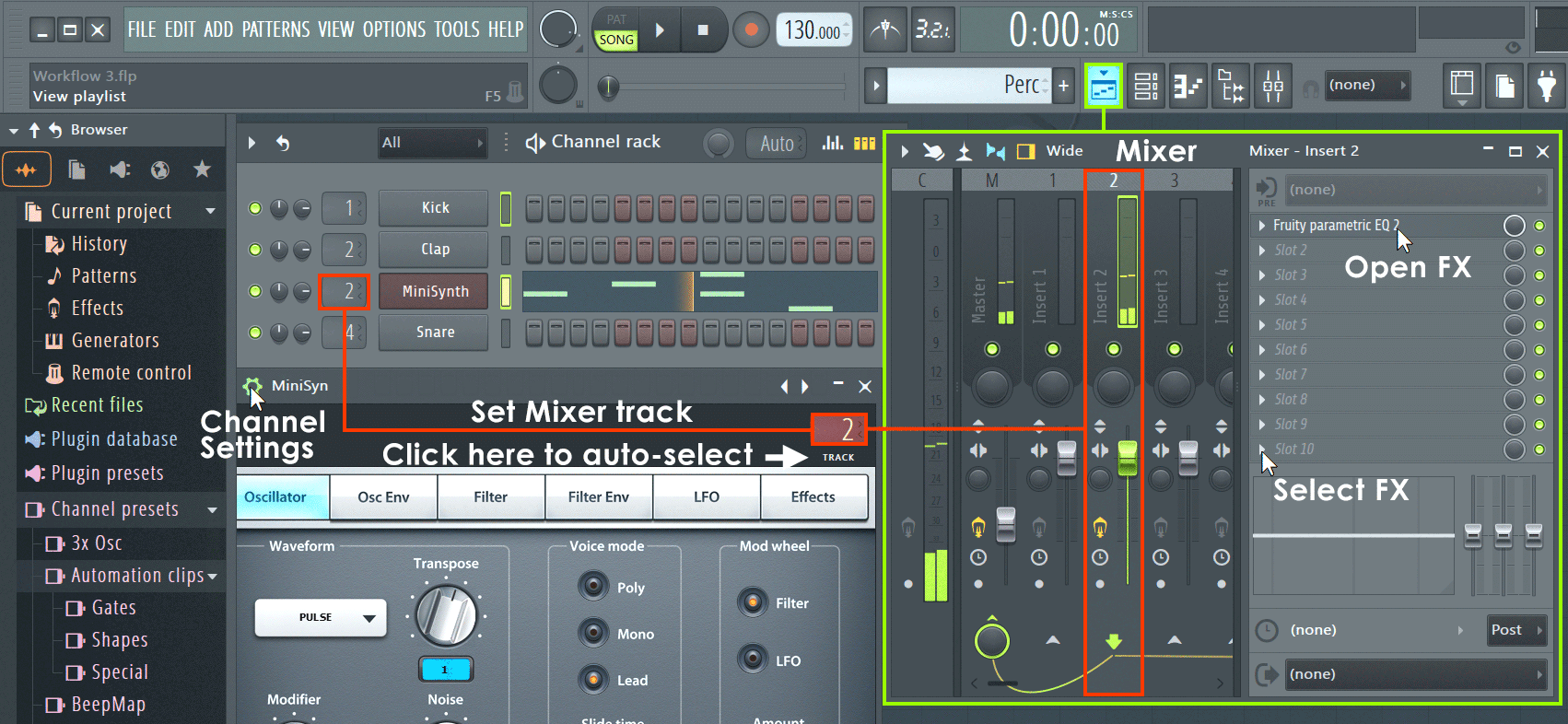
- Mixing - Sound from the instrument channels is routed to the Mixer using the Channel settings Mixer TRACK send (as shown above). Use the Mixer to set levels and add Effects (FX) such as reverberation (reverb), chorus and delay.
- See the page Levels, Mixing & Clipping for more detailed Mixing advice, and in particular the section Making tracks louder! (and good) for some tips on getting a great 'commercial' sound.
- Almost all aspects of mixing are automatable, so fader movements and knob changes become part of the overall performance.
- The Mixer is also the place where external audio from a microphone, guitar or synthesizer can be recorded along with the internal instruments.
- The recorded sound is displayed in the Playlist as an Audio Clip.
- NOTE: Routing Instrument Channels to Mixer tracks - The most efficient way to route one or more Channels to Mixer tracks is to:
- 1. Left or Right-Click the Channel Selector LED's to the right side of each Instrument Channel you want to route ((Right-click) allows multiple selections).
- 2. Right-Click the target Mixer track and select 'Link selected channels > to this track' from the pop-up menu. OR use 'Link selected channels > starting from this track' to assign multiple Channels to multiple Mixer tracks.
- Adding Effects (FX) - An important part of Mixing is adding effects. These can be either for creative purposes or sculpting the sound so that all the parts of the track sit well together. The video below covers Effect plugins in FL Studio.
5. Exporting audio
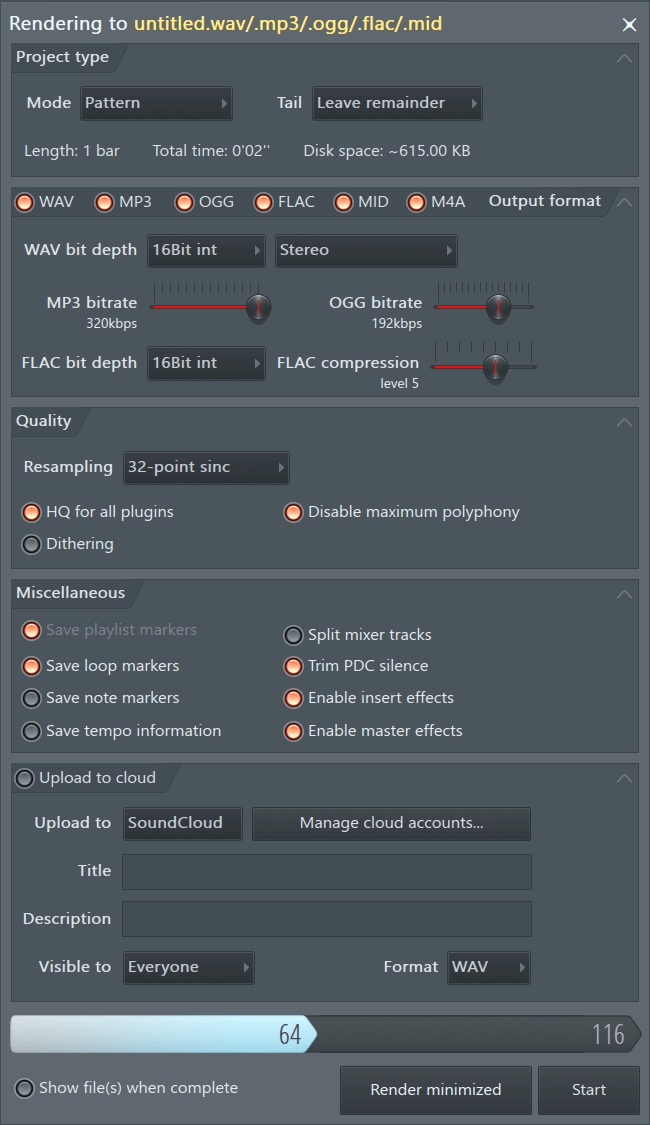
- Exporting/Rendering - The final mix is exported from FL Studio to a .wav, .mp3 or .ogg file format by selecting the export option from the file menu in a non-real time process called rendering.
6. Using the Manual and Website
They say, if you give a hungry man a fish, you feed him for a day, but if you teach him how to fish, you feed him for a lifetime. Let's learn how to fish then...
Some useful links mentioned in this video, not elsewhere on this page, include...
- The User Forum ( Looptalk )
- Technical Support forums - FL Studio Windows Support and FL Studio macOS Support.
- MIDI Scripting Forum
- FLP Exchange
- Epic sound design and recreation
- Support & Knowledge Base
7. YouTube 3rd Party Video Tutors
As a FL Studio user, there is an exciting and wide range of video producers creating excellent content to help you create music in almost any style. Below are some of our favorite PowerTubers!
Music Theory & Classical Styles
- Adam Neely - General music Theory.
- Alex Moukala - FL Studio orchestral and scoring.
- David Bennett Piano - General music theory & composition.
- Guy Michelmore - Film scoring. Music theory.
Production Techniques
- Arcade - Mixed styles production.
- Dylan Tallchief - Production techniques. Song recreations and how-to's & creative processes.
- In The Mix - Production, sound design, professional mixing and mastering.
- Navie D - Production techniques, in-depth analysis.
- Seamless R - Sound Design and Production Fundamentals.
- SIKKY Beats - Beat making and music production Vlogs.
- Simon Servida Music - Production Techniques (entertaining)
Electronic Dance Music & Pop
- Asher Postman - Pop, EDM & Meme production.
- Jonas Aden - EDM production techniques.
- Tungevaag - EDM production techniques.
Hip hop, Trap & Rap
- Busy Works Beats - Trap / Hip hop focus.
- Chuki Beats - Hip hop focus. Production.
- J Rent - Music production focusing on recreating the sound of Hip hop sub-genres and popular rap artists.
- Kyle Beats - Hip hop/ Trap focus.
- Praxi Plays - Production techniques and Type Beat production.
That's it, go make some organized noise! 