WAVE EDITOR / RECORDER
Edison 
Edison is a fully integrated audio editing and recording tool. Edison loads into an effect slot (in any Mixer track) and will then record or play audio from that position. You may load as many instances of Edison as you require in any number of Mixer Tracks or Effects slots. To open Edison press Ctrl+E in a Sampler Channel, or load from the effects menu into Mixer track/s.
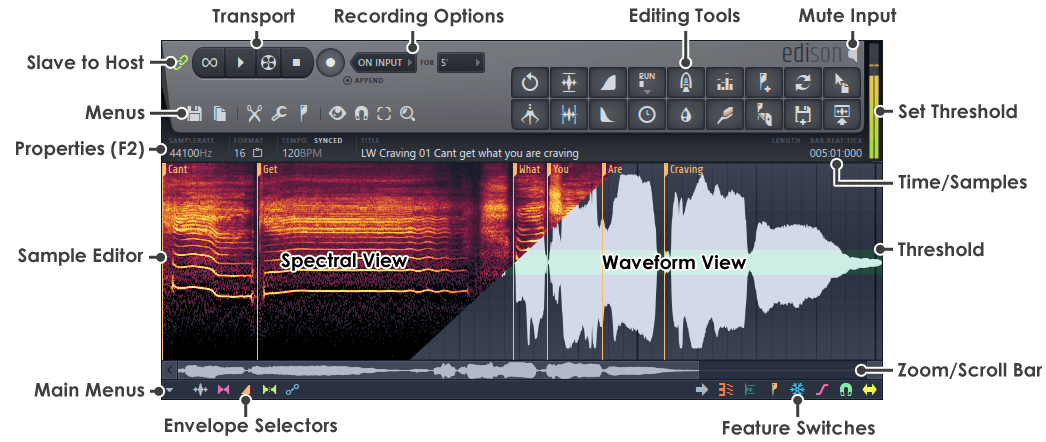
Transport Controls
Recording Options
These options take effect when Record is selected from the Edison transport controls.
Load Edison into one (or more) effects slot/s in any number of Mixer tracks and each instance will then record from that position. Alternatively it is
possible to record directly into the Playlist. Click here to see the section in the video tutorial  Edison Loop Recording.
- Record button - Arm Edison for recording (turns red when armed).
- Start recording selector:
- Now - Audio recording begins when the option is selected. To stop recording, de-select record mode.
- On input - Recording begins when an audio signal is received. To set the trigger level, Left-click on the Peak Meter and move the mouse up/down. NOTE: Edison uses a pre-record buffer so that transients will not be lost when a signal is received. In other words, you do not need to make a 'triggering' sound to guarantee early transients that may be below the trigger threshold.
- Input - Recording automatically pauses during silence and resumes on audio input. To set the trigger level, Left-click on the Peak Meter and move the mouse up/down.
- On play - Recording starts when playback is started from the main transport controls. 'On play' mode will also place accurate song start markers when Play starts/stops or the Playlist loops back to the start of the song. This is useful for recording multiple takes so that you can easily select the region/s you wish to export to wave files and include in your song.
- Duration selector (For):
- Minutes - 1 to 60 Minutes.
- File size - 50 MB to 1 GB.
- Ever - Forever means until you run out of memory (no refund loopholes for you!).
- Append - Appends new recordings to existing data.
NOTES:
- Recording duration - When the time is exceeded, Edison will wrap and overwrite the previously recorded sample. The Minute/MB settings are useful for continuous background recording so that you don't miss stellar performances while jamming. However, be aware that recordings longer than 5 minutes use progressively more CPU during the wrap phase, slowing the user interface considerably.
- Recording level - Audio is passed to Edison pre-fader of the track it is loaded on. This means changing Edison's mixer track fader level does not affect recording level.
- Recording input - Edison records audio from the effect slot position that it is loaded on. This provides flexibility for recording wet and/or dry signals. For example, place an instance of Edison before and after any effects in the mixer chain and obtain both dry and wet recordings of the audio entering the mixer track. Don't forget to disable the mixer track effects following Edison if you need to listen to the recordings without the effects that are (still) being added by the mixer track.
- Bit-depth - Edison does not perform any analog to digital conversions when recording. It receives a pre-digitized audio stream from the sound-card/audio interface or FL Studio and converts it to 32-bit float format. This conversion is lossless and will fully preserve the quality of any input bit-depth (16 or 24 bit). Recording bit-depth is usually set in the soundcard, driver or Windows options (consult your owners manual).
- Memory - Edison operates exclusively in RAM (memory) and so is designed for working on samples or small songs, not recording hours and hours of audio. With RAM in mind, edit functions can require 4X the original sample space, so we recommend limiting samples to approximately 1/4 of free memory (there is an option 'Disable undo for large samples' that can help here). If you don't heed this warning your PC may explode, injuring bystanders, don't say we didn't warn you.
- Editing - These operations that require sample processing convert the source sample/s into 32-Bit float and at the samplerate of the highest wave in any group processed. This means that processed wave files are unlikely to be in the same format as the source samples, although you can set the sample format after you have edited the sample (as described below).
Exporting recorded audio to the Playlist
Alternatives for exporting audio from Edison to FL Studio are:
 |
Send sample to Playlist - Left-click - Sends the selection (or whole sample if no selection is made) to the Playlist as an Audio Clip. Right-click - Replaces the currently selected Audio Clip or Sampler Channel with the sample/selection in Edison. |
 |
Drag / copy sample / move selection - Left-click on the button and drag to the desired location. The selected region in the Sample Edit Window (or whole sample if no selection is made) will be copied and moved to any compatible location in FL Studio, e.g. Sampler channels, Fruity Slicer, DirectWave, the Playlist, etc. Right-click to copy the selection to the clipboard. |
 |
Tools > Sequencing
|
 |
Save and load - Save the audio/selection to a file and re-import it through the Browser. |
NOTES: Prior to exporting your audio to the Playlist use the Edit properties (F2) dialog so that Audio clips behave as expected:
- Clip auto-naming - Edison will use a default naming system, unless the audio clip is named in the sample properties dialog.
- Tempo sync - To set the Audio Clip so that it will be automatically stretched if the project tempo is changed (useful to keep rhythmic samples in time), click the 'default' button in the tempo settings panel. If the file is not set as 'tempo-sync' or has no tempo (0), it will not be stretched.
- 16 or 32-Bit? - If your soundcard was set to record at 16-Bit then it is reasonable to convert the file to 16-Bit prior to saving to disk, otherwise leave the file at 32-Bit float.
Loop Recording
While it is possible to Loop Record in the Playlist, the best method is to use Edison as follows -
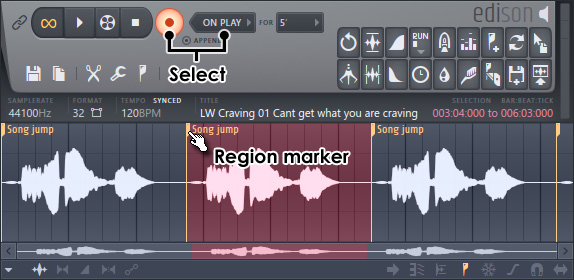
- Load Edison in a Mixer track that will receive the audio - Select a Mixer track and press (Shift+E). This loads Edison in the first empty FX slot ready to record with 'Slave playback to host' and Record 'On play' enabled.
- Select your input - Select your live audio input from the Mixer INPUT menu.
- Make a Playlist selection - If you only want to record a section of the song, highlight the section of time in the Playlist, hold (Ctrl) and then click and drag along the bar-count at the top of the Playlist. If you don't make a selection then the whole song will loop-record.
- Start recording - Press Play in FL Studio and record as many takes as you need into Edison. Each time Edison loops section Markers ('Song jump') will be placed in the recording (these are useful for later).
- Stop recording - Press stop on the main FL Studio transport panel and click on the record button in Edison to disable it.
- Start playback - Press Play in FL Studio and the first take in Edison will play in sync with the Playlist (slave mode is on), looping when the Playlist does.
- To Select a sample region (Ctrl + Left-click) on the region start-marker, as shown above.
- Audition takes - With Edison focused use the left and right arrow keys on your keyboard to select a different takes in Edison. Each left/Right-click will jump to the next/previous section.
- Send the perfect take to the Playlist - Press (Shift+C) to send the
current selection in Edison to Playlist. You can also use Drag/drop to the Playlist using the drag-sample button. NOTE: Edison will automatically set the sample
properties to the current project tempo so that the recording will stretch as the project tempo is changed.