REWIRE SUPPORT
Using FL Studio ReWire with Cubase SX™ 
NOTE: ReWire was discontinued by Propellerheads / Reason Studios in 2020. Consequently, FL Studio as a ReWire device is also now deprecated in FL Studio. Official support ended with FL Studio 20.7. Please use FL Studio as a VST/AU to use it in other DAWs.
The following guide covers the steps required to use the FL Studio ReWire device with Steinberg's Cubase SX™ sequencer.
The guide assumes you have read and understood the general information and guidelines about using FL Studio as a ReWire client (see Client Mode).
1. Make sure the FL Studio ReWire device is registered
Registering ensures Cubase™ will detect the device at startup and launch FL Studio as a ReWire client. If you have disabled the device earlier or you are not sure if it is registered, repeat the FL Studio ReWire device registration procedure.
2. Launch Cubase SX
Launch Cubase SX™ and start a new project (or open an existing one).
3. Enable the required audio channels

In the Cubase™ window, open the Devices menu and select FL Studio. You will see the configuration for the FL Studio ReWire device that allows you to select the audio channels that are active for the device. By default all channels are inactive.
The default setup of FL Studio links the master mixer track to the first stereo pair of audio channels (as shown lower-right) so the entire FL Studio mix is audible.
4. Launch the FL Studio ReWire panel.
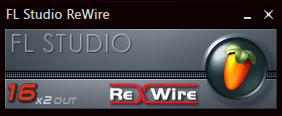
Launch FL Studio from the shortcut on your Desktop or the one in your Start Menu.
Since you have started a ReWire host prior to this (Cubase™), you will see the FL Studio ReWire device panel.
The panel automatically displays the FL Studio window in the host.
5. Toggle the FL Studio window visibility
Clicking the FL Studio icon toggles the visibility of the FL Studio window inside Cubase™.
If you need to hide the FL Studio window, use the close button in the FL Studio window (this will not terminate the current session) or click the icon button on the FL Studio ReWire panel.
To display the window later, click the icon button again.
6. End
FL Studio is now setup to work properly as a ReWire device inside Cubase™.
To test the setup, load an existing project in FL Studio or activate several steps in an existing channel and hit the play button in Cubase™. You will hear FL Studio playing synchronized with Cubase™.