INTERNET RESOURCES
Content Library
The online Content Library allows you to browse, buy and download additional content for FL Studio/plugins. To open the Content Library, click on the online download button located on the Online Panel, as shown below.
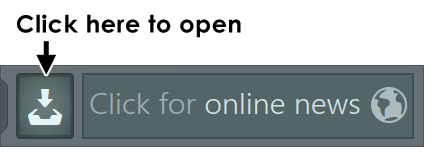
Some plugins such as FPC and DirectWave can launch the Content Library directly. In this case only content compatible with the plugin will be shown.
Browser Window
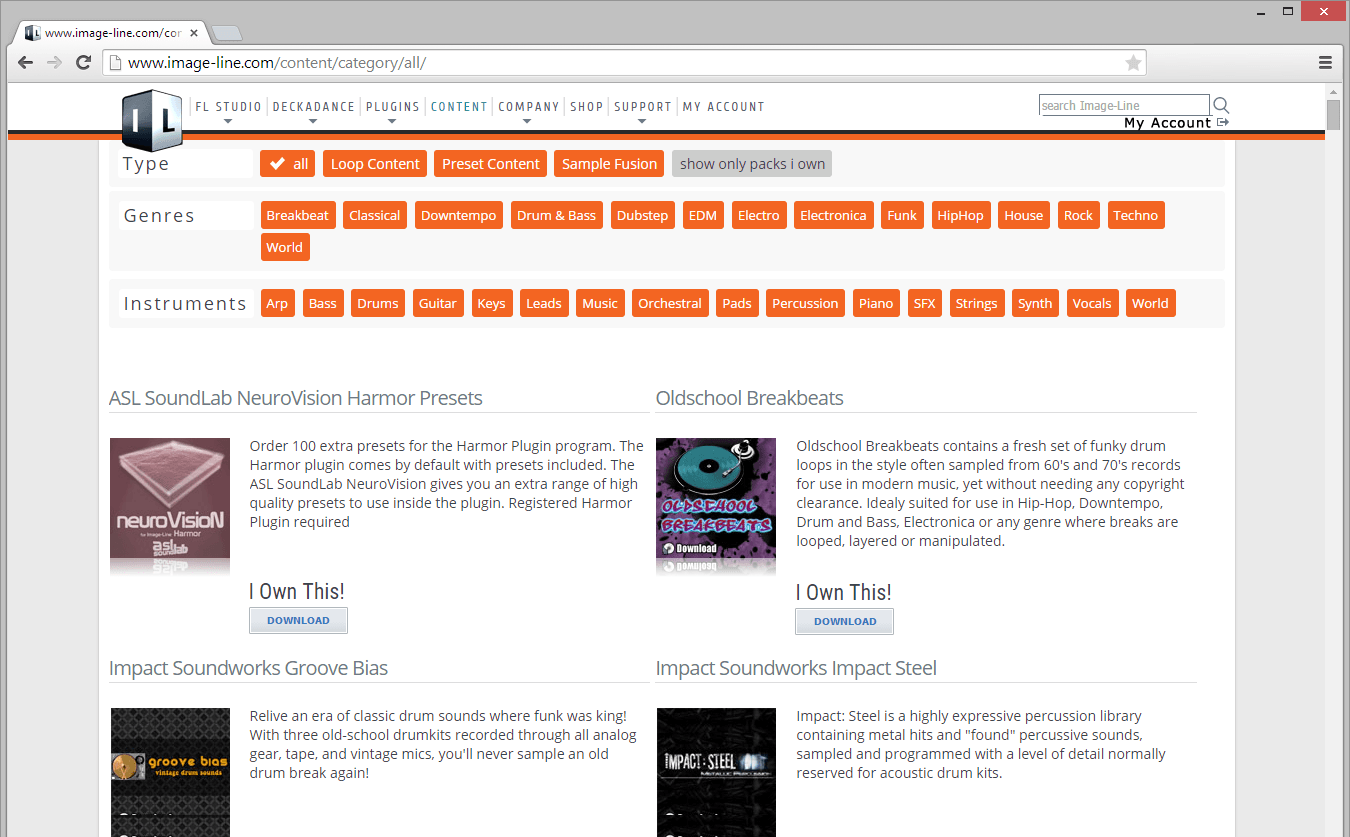
The Browser Window shows the files available for download. The files shown will automatically match the selected instrument when it launched the Content Library. Files are categorized into:
- Type filter - Log into you Image-Line account and the Show only pack I own / Show all option will be available.
- Genres & Instruments - Use thse categories to further refine searches.
Downloading
- Download - Clicking download will take you to your My Account with the product license open (give the page a moment to fully load).
- Install - Use the 'Click here to download' link to download your content. Normally this will be in .zip file format. You can unzip this to a location of your choice (make sure it's visible to the Browser, see Browser extra search folders) OR use the included installer inside the .zip to put it in FL Studio to the default location.